Agents > Computer Use
Screenshots and videos in pull requests
# Screenshots and videos in pull requests import { VARS } from '@data/vars'; When a cloud agent run opens or updates a pull request, the screenshots and video recordings it captured with [Computer Use](/agent-platform/capabilities/computer-use/) are attached to the PR description automatically. Reviewers get visual proof of the change — a rendered UI state, a recorded flow, a bug reproduction — without leaving the pull request. ## What gets attached * **Screenshots** - UI states the agent captures during its Computer Use session. Up to 10 screenshots are attached per pull request. * **Video recordings** - Session recordings the agent produces. See [Testing and recordings](/agent-platform/capabilities/computer-use/testing-and-recordings/) for how recordings are captured and processed. Attachment is automatic: once a screenshot or recording artifact is associated with the run, the agent includes it the next time it creates or updates a pull request. You can encourage captures in your prompt — for example, "take screenshots of the before and after states" or "record the flow and attach it to the PR." ## Attachment modes A team-level setting controls how artifacts are attached: * **Link only (default)** - Screenshots and recordings are attached as links to the run's page in the {VARS.WEB_APP}. Artifacts stay private: opening a link requires access to the run. * **Embed** - Screenshots render inline as images in the PR description, and recordings are attached as direct download links. To make this work, the attached artifacts are published at stable, publicly accessible URLs. * **Disabled** - No screenshots or recordings are attached to pull requests. :::caution In **Embed** mode, attached screenshots and recordings become publicly downloadable by anyone with the URL — including anyone who can read the PR description. Use **Link only** if your Computer Use sessions may capture content that shouldn't leave your team. ::: ### Changing the attachment mode Team admins control the attachment mode from the [Admin Panel](https://app.warp.dev/admin/): 1. In the Admin Panel sidebar, select your team under **Team admin**. 2. Click the **Platform** tab. 3. Under **Pull request artifact attachments**, choose **Disabled**, **Link only**, or **Embed**. <figure>  <figcaption>The Pull request artifact attachments setting in the Admin Panel.</figcaption> </figure> ## Where else artifacts appear Pull requests aren't the only place captures end up: * **In the conversation** - Screenshots and recordings appear as blocks in the agent's conversation as they're captured. * **On the run page** - Open the run in the [{VARS.WEB_APP}](/platform/oz-web-app/#runs) to view, play, or download all artifacts the run produced. ## Related pages * [Computer Use](/agent-platform/capabilities/computer-use/) - Control Computer Use and understand security considerations. * [Testing and recordings](/agent-platform/capabilities/computer-use/testing-and-recordings/) - How the recording pipeline works and what finished videos contain. * [Admin Panel for teams](/enterprise/team-management/admin-panel/) - The full reference for team settings, including the Platform section. * [Viewing cloud agent runs](/platform/viewing-cloud-agent-runs/) - Open and inspect cloud agent run transcripts. * [Privacy](/support-and-community/privacy-and-security/privacy/) - Warp's data handling policies, including how run artifacts are stored.Tell me about this feature: https://docs.warp.dev/agent-platform/capabilities/computer-use/artifacts-in-prs/Cloud agents automatically attach Computer Use screenshots and video recordings to pull request descriptions, giving reviewers visual proof without extra steps.
When a cloud agent run opens or updates a pull request, the screenshots and video recordings it captured with Computer Use are attached to the PR description automatically. Reviewers get visual proof of the change — a rendered UI state, a recorded flow, a bug reproduction — without leaving the pull request.
What gets attached
Section titled “What gets attached”- Screenshots - UI states the agent captures during its Computer Use session. Up to 10 screenshots are attached per pull request.
- Video recordings - Session recordings the agent produces. See Testing and recordings for how recordings are captured and processed.
Attachment is automatic: once a screenshot or recording artifact is associated with the run, the agent includes it the next time it creates or updates a pull request. You can encourage captures in your prompt — for example, “take screenshots of the before and after states” or “record the flow and attach it to the PR.”
Attachment modes
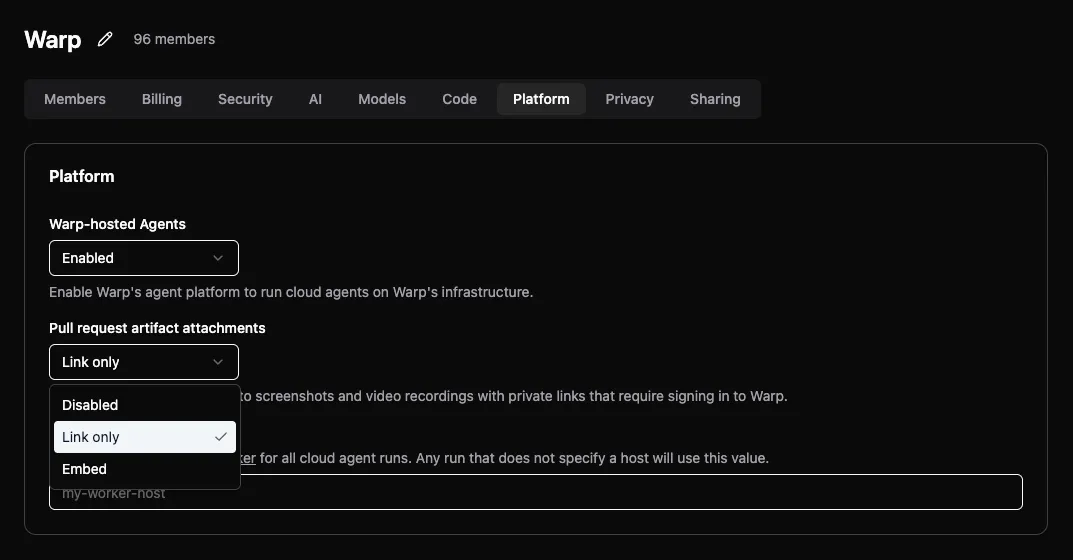
Section titled “Attachment modes”A team-level setting controls how artifacts are attached:
- Link only (default) - Screenshots and recordings are attached as links to the run’s page in the Oz web app. Artifacts stay private: opening a link requires access to the run.
- Embed - Screenshots render inline as images in the PR description, and recordings are attached as direct download links. To make this work, the attached artifacts are published at stable, publicly accessible URLs.
- Disabled - No screenshots or recordings are attached to pull requests.
Changing the attachment mode
Section titled “Changing the attachment mode”Team admins control the attachment mode from the Admin Panel:
- In the Admin Panel sidebar, select your team under Team admin.
- Click the Platform tab.
- Under Pull request artifact attachments, choose Disabled, Link only, or Embed.
Where else artifacts appear
Section titled “Where else artifacts appear”Pull requests aren’t the only place captures end up:
- In the conversation - Screenshots and recordings appear as blocks in the agent’s conversation as they’re captured.
- On the run page - Open the run in the Oz web app to view, play, or download all artifacts the run produced.
Related pages
Section titled “Related pages”- Computer Use - Control Computer Use and understand security considerations.
- Testing and recordings - How the recording pipeline works and what finished videos contain.
- Admin Panel for teams - The full reference for team settings, including the Platform section.
- Viewing cloud agent runs - Open and inspect cloud agent run transcripts.
- Privacy - Warp’s data handling policies, including how run artifacts are stored.